


iPhone as a microphone for AirPods: how to turn on Live Listen
Put your iPhone on the table and everything it hears plays in your AirPods. That’s Apple’s Live Listen. Here’s who it’s for, how to turn it on, and why it’s better not to have private conversations next to someone else’s phone.
 Message on WhatsApp
Who it’s for
Live Listen helps people who find it hard to hear — in a lecture, a meeting, a café or a noisy room. The iPhone microphone picks up the speaker’s voice and sends it to your earbuds. It works with AirPods, AirPods Pro, AirPods Max and some Beats headphones.
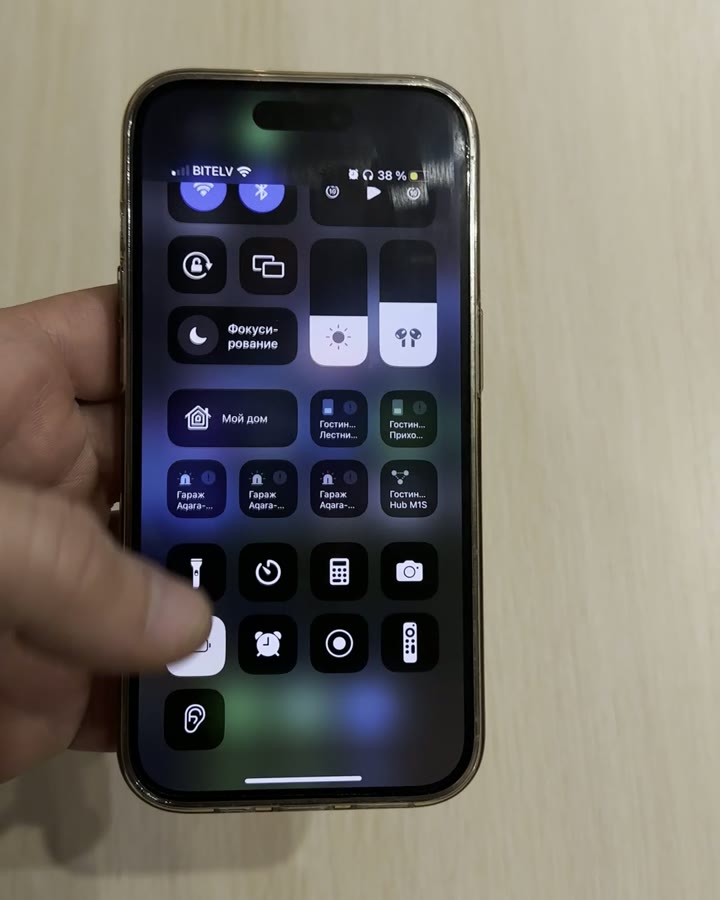
1. Add the button to Control Center
iOS 18: open Control Center, tap «+» in the top-left corner, choose «Add a Control» and find «Hearing» (the ear icon). iOS 17 and earlier: Settings → Control Center → add «Hearing».
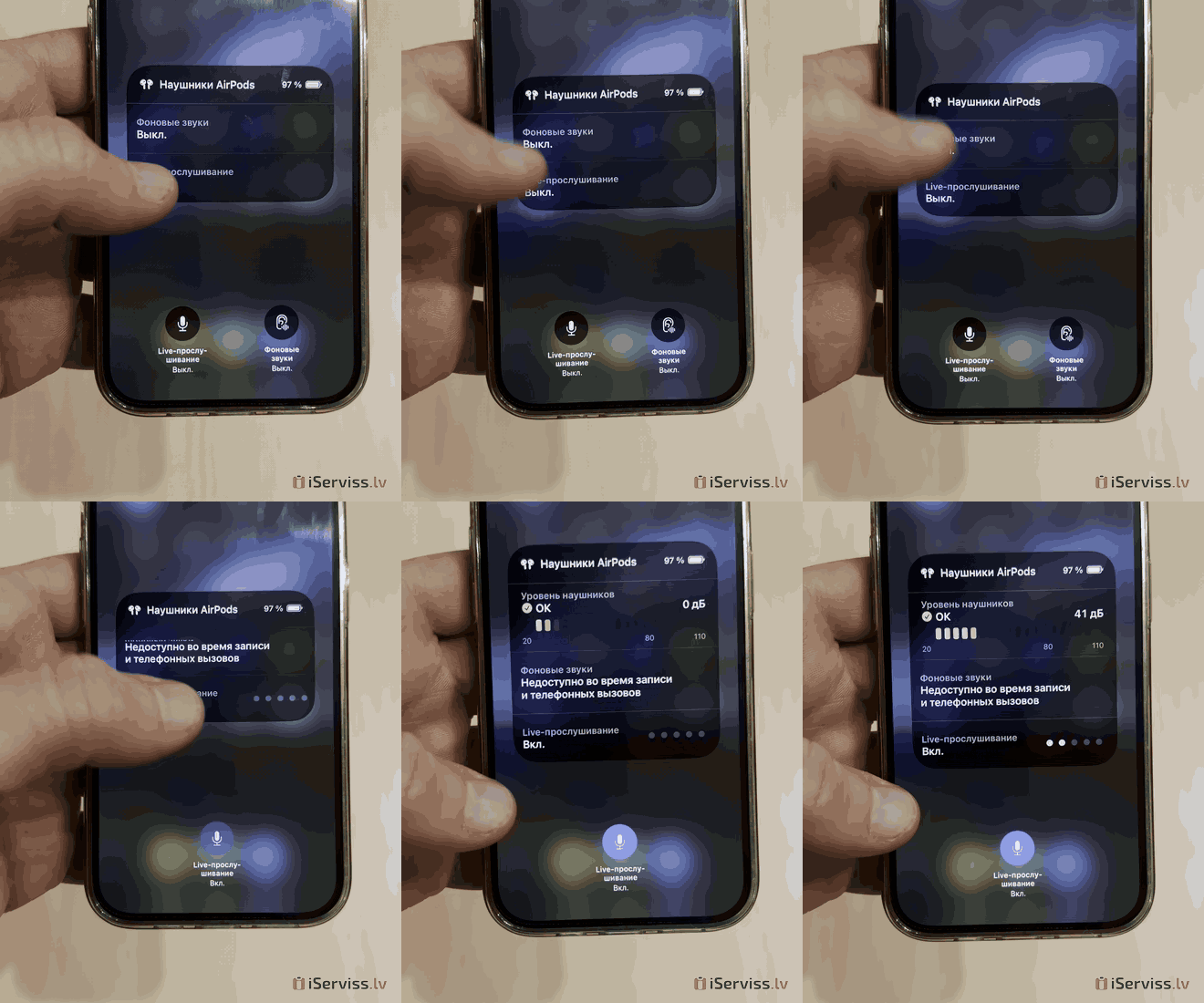
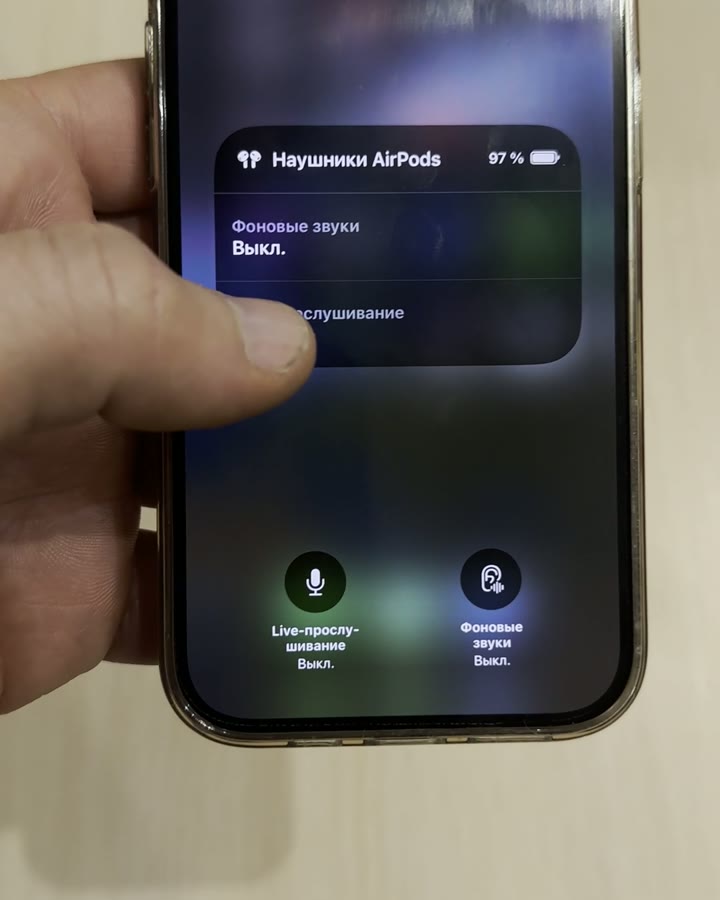
2. Turn on Live Listen
Put your AirPods in, open Control Center, tap the ear icon and turn on Live Listen. Place the iPhone closer to the person speaking. Tap again to turn it off.
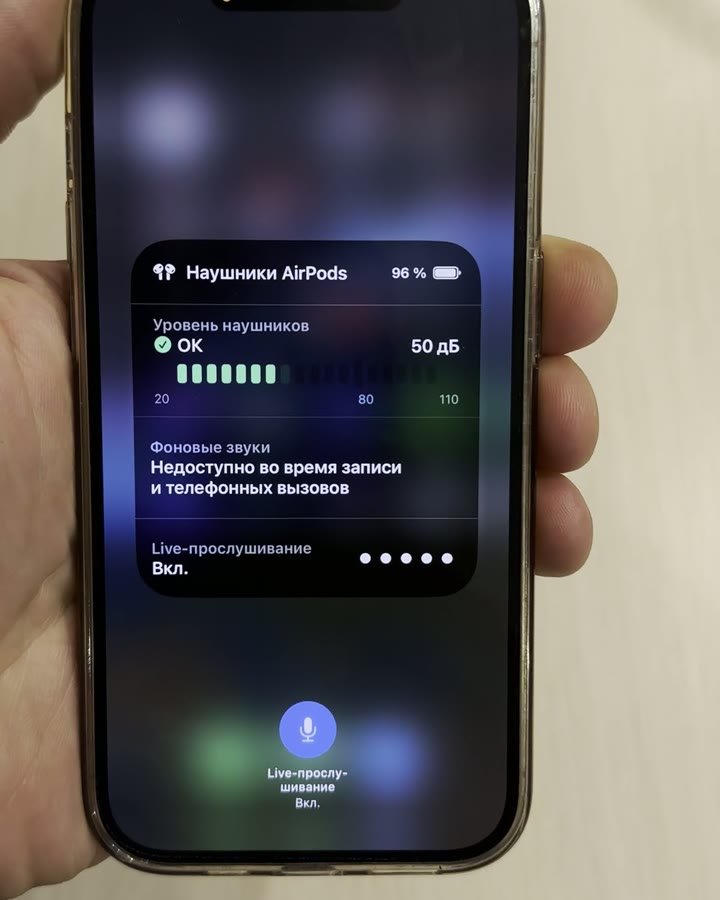
3. The screen shows the sound level
When Live Listen is on, the panel shows how loud the sound is in your earbuds and the status «On».
Careful: someone can listen in on you, too
Someone else’s iPhone left on a table nearby can pass your conversation to their earbuds in exactly the same way — and you won’t notice. Keep private conversations away from phones that aren’t yours.
Tips
- If your AirPods sound quiet or crackly, dirt in the mesh is often the reason. Cleaning AirPods at our service takes about 20 minutes.
- Live Listen is not a replacement for a medical hearing aid.




- Tourism and leisure
- 3MK
- Solar Power
- Green Cell
- LED Lamps
- Drones
- Mous Accessories
- Details
- Phones and smartphones
- Tablets, accessories
- Photo, video equipment, optics
- TV, Video equipment
- Laptops, accessories
- Gaming Consoles
- Accessories
- Health care & beauty
- Computers
- For kids
- Device
- Audio equipmets
- Transportation devices
- Home and Garden
- Building tools
- Small appliance

Kr. Barona iela 70, Rīga.


